1. Introduction
With the rapid development of generative AI, deploying AI assistants on edge devices has become increasingly important for applications requiring privacy, low latency, and offline capabilities.
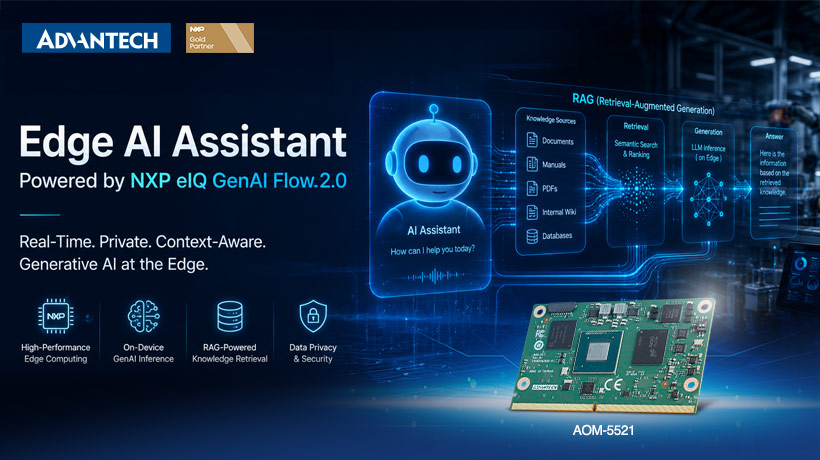
The Advantech AOM-5521, powered by the NXP i.MX 95 application processor, provides a powerful edge computing platform designed for AI and embedded applications.
By leveraging NXP eIQ GenAI Flow 2.0 together with Retrieval-Augmented Generation (RAG), developers can build AI assistants that retrieve information from local documents and generate context-aware responses directly on the edge device.
In this article, we demonstrate how to build an Edge AI Assistant on the AOM-5521 platform using NXP eIQ GenAI Flow 2.0 with RAG, including document preparation on a host PC, knowledge database generation, and running the assistant on the device.
2. Prerequisites
This solution requires two machines working together: a Host PC (x86) and the AOM-5521 edge device. The overall workflow is divided into two distinct stages, as illustrated below:
Host PC (x86) — Pre-processing Stage: The host PC handles all computationally intensive preparation tasks: parsing PDF documents with Docling, chunking the extracted text, and running an embedding model to generate the RAG knowledge database (rag_database.pkl). A capable x86 machine is required for this stage because the embedding model and document parser demand substantial CPU and memory resources that exceed the AOM-5521’s intended workload.
AOM-5521 — Runtime Stage: Once the rag_database.pkl is transferred to the AOM-5521, the device loads the database at startup and uses it to answer domain-specific questions entirely on-device. At runtime, the i.MX 95 NPU accelerates the LLM inference, while the CPU handles the lightweight similarity search against the pre-built vector database. No cloud connectivity or model retraining is needed.
This division of labor is precisely what makes the architecture practical for edge deployment. Heavy pre-processing is done once on a capable host, and the resulting compact knowledge database runs efficiently on the constrained edge device.
2.1 Necessary Hardware
Host PC (x86) — Pre-processing
- x86-64 PC or workstation running Ubuntu 20.04 or Ubuntu 22.04
- CPU: Intel Core i5 / i7 or AMD Ryzen equivalent (8+ cores recommended)
- RAM: 16 GB minimum (32 GB recommended when processing large PDF corpora)
- Storage: 50 GB free disk space (SSD recommended for faster I/O)
- Network: Internet access required to download Hugging Face models and Python packages
AOM-5521 Target Device — Runtime
- AOM-5521 — a SMARC 2.2 Computer-on-Module (COM) powered by the NXP i.MX 95 Plus SoC
- SOM-DB2510 — an evaluation carrier board designed for Advantech SMARC 2.1 modules
- 1 × Power Adapter (input: 100~240V AC 50/60Hz; output: DC 12V 3A; Advantech P/N: 96PSA-A36W12R1-3)
- 1 × HDMI Cable for connecting to a monitor
- 1 × USB Type-C Conference Microphone for voice input
- 1 × Monitor (standard HDMI monitor)
2.2 Necessary Software
This project uses a two-stage pipeline: document pre-processing runs on a Host PC, while the AI assistant runs at runtime on the AOM-5521 target device.
Host PC Requirements
- UV Python package manager — for faster Python dependency installation
- Python 3.11 environment
- Hugging Face account and personal read access token — required to download AI models
- NXP eIQ GenAI Flow 2.0 Demonstrator Repository
Target Device (AOM-5521) Requirements
- Yocto 5.0 OS
- Git and Git Large File Storage (Git-LFS)
- Python 3.11 environment
- NXP eIQ GenAI Flow 2.0 Demonstrator Repository
3. Setting Up the Host PC
The host PC is responsible for parsing PDF documents and generating the RAG knowledge database (rag_database.pkl) that will be deployed to the AOM-5521.
3.1 Install UV and Clone the Repository
Install the UV package manager and clone the NXP eIQ GenAI Flow 2.0 repository:
curl -LsSf https://astral.sh/uv/install.sh | sh
source $HOME/.local/bin/env
git clone --single-branch -b release/v2.0 https://github.com/nxp-appcodehub/dm-eiq-genai-flow-demonstrator
3.2 Create Virtual Environments and Install Packages
Navigate to the RAG directory, create a Python 3.11 virtual environment, and install the required packages:
cd dm-eiq-genai-flow-demonstrator/rag
uv venv --python 3.11
uv pip install -e .[dev]
uv pip install flash-attn --no-build-isolation
uv run python -m ensurepip --upgrade
3.3 Configure Hugging Face Token
A Hugging Face personal read access token is required to download the AI models. Create a Hugging Face account, generate a personal read access token from your account settings, then export it as an environment variable:
export HF_TOKEN="<your_huggingface_token>"
4. Generating the RAG Knowledge Database (Host PC)
The RAG pipeline on the host PC converts your PDF documentation into a vector database. This involves three steps: placing PDF files, parsing them, and generating embeddings.
4.1 Place PDF Files
Copy your PDF documentation into the input folder:

4.2 Parse PDF Files
Run the document parser (powered by Docling) to extract text and metadata from the PDF files:
uv run -m document_parsing -f all
4.3 Generate Text Chunks
Process the parsed text into chunks using the chunking strategy (e.g., SpaCy, NLTK) and save the result as chunks.json:
uv run -m rag.preprocessing.generate_chunks -f all

4.4 Generate Embeddings and Build the Database
Run the embedding model (e.g., all-MiniLM-L6-v2, 30M parameters) to generate vector embeddings for all chunks and produce the final rag_database.pkl file:
uv run -m rag.preprocessing.generate_embeddings -f all


The output file rag_database.pkl will be saved to dm-eiq-genai-flow-demonstrator/rag/src/data/. This file contains the embeddings, chunks, and metadata required for runtime retrieval on the AOM-5521.

5. Setting Up the AOM-5521
The following steps are performed directly on the AOM-5521 target device running Yocto 5.0 OS.
5.1 Install Git and Git-LFS
If Git is not already installed, build and install it from source:
cd ~
wget https://www.kernel.org/pub/software/scm/git/git-2.9.5.tar.gz
tar -zxf git-2.9.5.tar.gz
cd git-2.9.5
make prefix=/usr/local all
sudo make prefix=/usr/local install

cd ~
rm -r git-2.9.5
rm git-2.9.5.tar.gz
Then install Git-LFS (required for downloading AI model weight files stored as large binaries):
cd ~
wget https://github.com/git-lfs/git-lfs/releases/download/v3.7.1/git-lfs-linux-arm64-v3.7.1.tar.gz
tar -xf git-lfs-linux-arm64-v3.7.1.tar.gz
cd git-lfs-3.7.1
chmod a+x ./install.sh
./install.sh

cd ~
rm -r git-lfs-3.7.1
rm git-lfs-linux-arm64-v3.7.1.tar.gz
5.2 Clone and Install eIQ GenAI Flow 2.0
Clone the repository and run the installation script:
Reference repo: eIQ GenAI Flow v2.0
cd ~
git clone --single-branch -b release/v2.0 https://github.com/nxp-appcodehub/dm-eiq-genai-flow-demonstrator
cd dm-eiq-genai-flow-demonstrator
git lfs pull
./install.sh
6. Launching the Edge AI Assistant with RAG
To launch the eIQ GenAI Flow 2.0 demonstrator with RAG enabled, pass the -r flag:
python3 eiq_genai_flow.py -r
Upon startup, the system loads the following models:
- Embedding model:
all-MiniLM-L6-v2 - LLM:
danube-500M-q8 - TTS model:
english-multi_speaker-16k-quant-encrypted
Type your question at the prompt, and the assistant will retrieve relevant context from the RAG database and generate a response using the on-device NPU.
6.1 Optional: Check USB Audio Codec
If using voice input via the USB conference microphone, plug in the USB codec and verify it is detected:
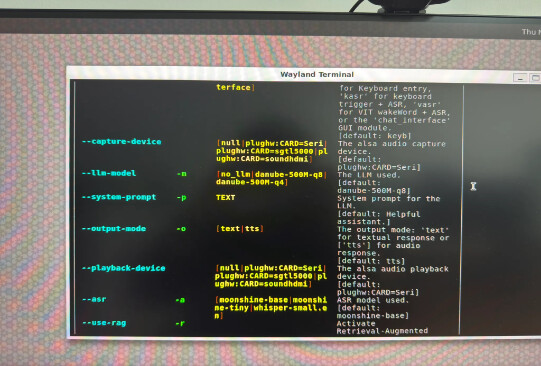
python3 eiq_genai_flow.py -h
The detected USB codec will appear as plughw:CARD=Seri under the --capture-device and --playback-device options.