1. Introduction
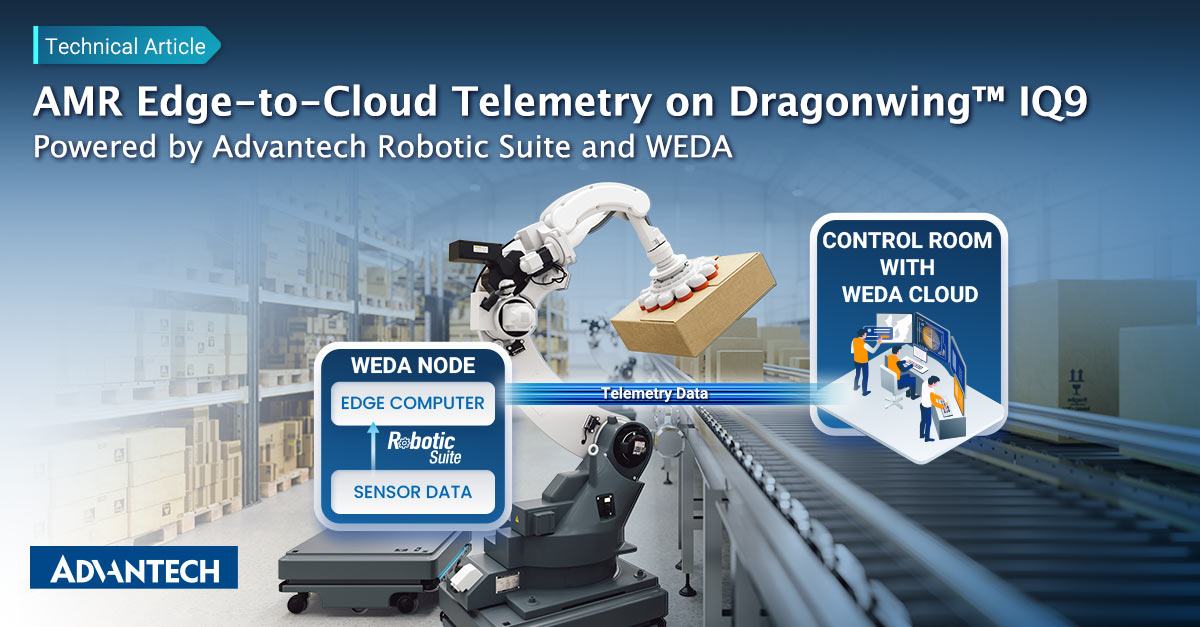
Autonomous Mobile Robots (AMRs) are increasingly deployed in factories, warehouses, and healthcare environments, where operators need real-time visibility into robot status, mission progress, and operational events. While perception, navigation, and control are typically executed locally at the edge to ensure low latency and reliable operation, telemetry data must be securely transmitted to the cloud for centralized monitoring and fleet management.
Advantech’s Dragonwing™ IQ9-based solutions, powered by the Qualcomm Dragonwing™ IQ9075 platform, provide a high-performance foundation for robotics applications with support for Ubuntu 24.04 Pro and ROS 2. Combined with Advantech Robotic Suite and WEDA edge-to-cloud services, the platform enables AMRs to collect operational data and securely stream telemetry, including patrol status, detection events, battery information, and device-health metrics, to the cloud for centralized monitoring and management.
This article demonstrates how telemetry generated by an AMR application can be transmitted from the edge to WEDA Cloud for centralized monitoring and management. The solution combines Advantech Robotic Suite running on the Dragonwing™ IQ9 platform with WEDA edge-to-cloud services to create a complete telemetry pipeline from robot operation to cloud visualization.
What you will learn in this article:
- Build a working AMR application on Advantech’s IQ9-based solution using Ubuntu 24.04 Pro and Robotic Suite.
- Integrate key peripherals, including LiDAR, camera, and motor controllers, and verify sensor and motion data connectivity.
- Enable navigation, patrol, and human detection using Advantech Robotic Suite while processing workloads locally at the edge.
- Register and activate the IQ9 device in WEDA Cloud and obtain a managed device identity (deviceId).
- Deploy and configure the WEDA Sub-Node bridge to upload patrol and detection events as telemetry.
- Verify telemetry data in WEDA Cloud and confirm that events are displayed correctly through the web dashboard.
2. Solution Architecture
2.1 Overall Architecture
The solution consists of three layers that enable operational and telemetry data to flow from the robot to the cloud for centralized monitoring and management.
-
Sensor Layer
The Sensor Layer consists of the physical components installed on the AMR, including the LiDAR, camera, motor system, and battery. These devices generate sensor, motion, and operational data used by the navigation and monitoring applications.
-
Computing layer — Advantech Dragonwing™ IQ9-Based Platform
The Computing Layer runs on the Advantech Dragonwing™ IQ9-based platform. It hosts the robotics software stack, where Advantech Robotic Suite performs navigation, patrol, and detection workloads.
The WEDA Sub-Node bridge subscribes to Robotic Suite messages and converts them into telemetry payloads. The WEDA Node Agent manages device connectivity and securely uploads telemetry to WEDA Cloud through HTTPS. A Telemetry Buffer temporarily stores telemetry data before transmission, helping prevent data loss during network interruptions.
-
Cloud layer — WEDA Cloud
The Cloud Layer consists of WEDA Cloud (sandbox01), which provides device management, telemetry ingestion, and dashboard services. WEDA Core manages device and telemetry APIs, while the WEDA dashboard visualizes operational data collected from deployed robots.
2.2 Telemetry Data Flow
During operation, Advantech Robotic Suite generates application events, including patrol status updates, human-detection results, mission states, and device health information. The WEDA Sub-Node bridge subscribes to these messages and converts them into standardized telemetry payloads.
Once received by WEDA Cloud, the telemetry data is stored and made available through WEDA Core services and the WEDA dashboard for remote monitoring, analysis, and operational management.
This architecture minimizes integration effort by enabling Robotic Suite events to be translated into cloud-ready telemetry through a lightweight bridge layer, eliminating the need to modify the core robotics applications.

Figure 1 Three-Layer solution architecture
3. Prerequisites
3.1 Required Hardware
-
1 x Dragonwing™ IQ9-Based Computing Platform
Advantech offers a series of Dragonwing™ IQ9-based solutions, including:
- AOM-6741: SMARC full-size (proprietary) Computer-on-Module
- ASR-A503: Robotic controller board
- AFE-A503: Robotic controller system
This article uses the AOM-6741 as the reference platform to demonstrate the application scenario. The deployment procedures are identical for the ASR-A503 and AFE-A503, as they share the same SoC and software stack.
-
1 x AMR Chassis and Peripheral Set
The following hardware is used in this guide for demonstration purposes. These peripherals were selected because their drivers have already been validated and integrated on Advantech’s Arm-based platforms.
- Chassis / motor driver / battery: WHEELTEC L150 PRO
- LiDAR: RPLIDAR C1
- Camera: Logitech C922 Pro Stream Webcam
Using alternative devices may require additional driver integration and validation.
-
1 x Wi-Fi
A Wi-Fi connection is required for device onboarding, container image downloads, and telemetry uploads. The reference configuration uses the onboard Wi-Fi module (Realtek RTL8852BE, PCIe 802.11ax).
Part Number: EWM-W179M201E
-
1 x Display
AUO G101UAN02.0
-
1 x x86-Based Host PC
A separate host computer is required to onboard the device, access the web dashboard and perform validation and verification tasks. The host PC must be connected to the same network as the Dragonwing™ IQ9-based computing platform.
3.2 Required Software
The reference environment for this guide is based on Ubuntu 24.04 Pro (Arm64) running on an Advantech Dragonwing™ IQ9-based platform. To ensure compatibility and avoid dependency issues, use the software versions listed below whenever possible.
| Component | Where It Runs | Purpose | Version/ Reference | Download |
|---|---|---|---|---|
| Ubuntu 24.04 Pro (Arm64) | IQ9 Edge Platform | Base OS for the platform | Ubuntu 24.04 Pro | Link |
| Advantech Robotic Suite | IQ9 Edge Platform | Provides robot navigation, patrol, and object detection capabilities | ROS 2 Jazzy-based | Link #1 / Link #2 |
| WEDA Node Activator | IQ9 Edge Platform | Onboards the device and deploys the WEDA Node Agent | V1.1.0_20260527.1 (Ubuntu-arm64-offline) | Link |
| WEDA Sub-Node (Docker Container) | IQ9 Edge Platform | Forwards Robotic Suite data to the WEDA telemetry service | Reference implementation used in this guide | Link |
| Postman | Host PC | Verifies onboarding status and telemetry data through WEDA APIs | 11.71.7 | Link |
Note: The procedures described in this article were validated using the versions listed above. Different software versions may require additional configuration, dependency updates, or verification.
After preparing the required hardware and software components, the deployment process begins with installing Ubuntu on the IQ9 platform, followed by Advantech Robotic Suite installation, WEDA onboarding, telemetry integration, and cloud verification.
4. Ubuntu Deployment Through BSP Launcher
Instead of manually building and flashing the BSP, the IQ9 platform can be provisioned using Advantech BSP Launcher, a GUI-based tool that downloads validated images and flashes the target board through a guided workflow.
The deployment process consists of the following steps:
- Install and launch BSP Launcher on the host PC.
- Select Download Image and Flash, then choose the IQ9075 Ubuntu 24.04 Pro image.
- Connect the IQ9 platform through USB and switch the board to recovery mode.
- Confirm that the target is detected and start the flashing process.
- Reboot the system after flashing completes successfully.
For the full install steps, screenshots, and the guided flashing wizard, refer to Advantech’s BSP Launcher user guide: BSP Launcher — User Guide | AIM-Linux Developer Center
5. Install Advantech Robotic Suite / ROS 2
After Ubuntu has been deployed successfully, install Advantech Robotic Suite on the IQ9 platform. The suite provides a simplified installation experience for the ROS 2 software environment used by the AMR for navigation, patrol, and detection workloads. The current release supports Qualcomm-based Advantech platforms running certified Ubuntu 24.04 Pro.
Before proceeding, verify that the target system meets the following requirements:
- Ubuntu 24.04 Pro
- SUSI Driver and WISE-Agent installed
- Minimum 8 GB RAM
- Minimum 8 GB available storage
- Internet connectivity
- English-language operating system
Installation is straightforward:
- Download the Robotic Suite installer package.
- Extract and run it, then restart the board when prompted:
   $ tar zxfv adv-robotic-suite-installer-<version>.tar.gz
   $ sudo ./adv-robotic-suite-installer.run
On Ubuntu 24.04, verify success by confirming the Advantech Robotic Suite container has been created.
For the full download link, requirement notes, and verification screenshots, refer to the Robotic Suite basic installation guide: Basic Installation Guide | Robotic Suite
Remark: For the native ROS 2 Jazzy installation, please refer to Link.
6. Robotics Application
The live demo serves as practical evidence of the overall solution architecture. The Dragonwing™ IQ9-based platform interfaces with the AMR peripherals, including LiDAR, motors, battery systems, and cameras, while executing the complete navigation, patrol, and detection workflow locally through Advantech Robotic Suite.
A web-based dashboard visualizes patrol activities, detection results, and device health information in real time, allowing operators to monitor the robot through a standard web browser. The same operational events can also be forwarded to WEDA Cloud, as described in Section 7.

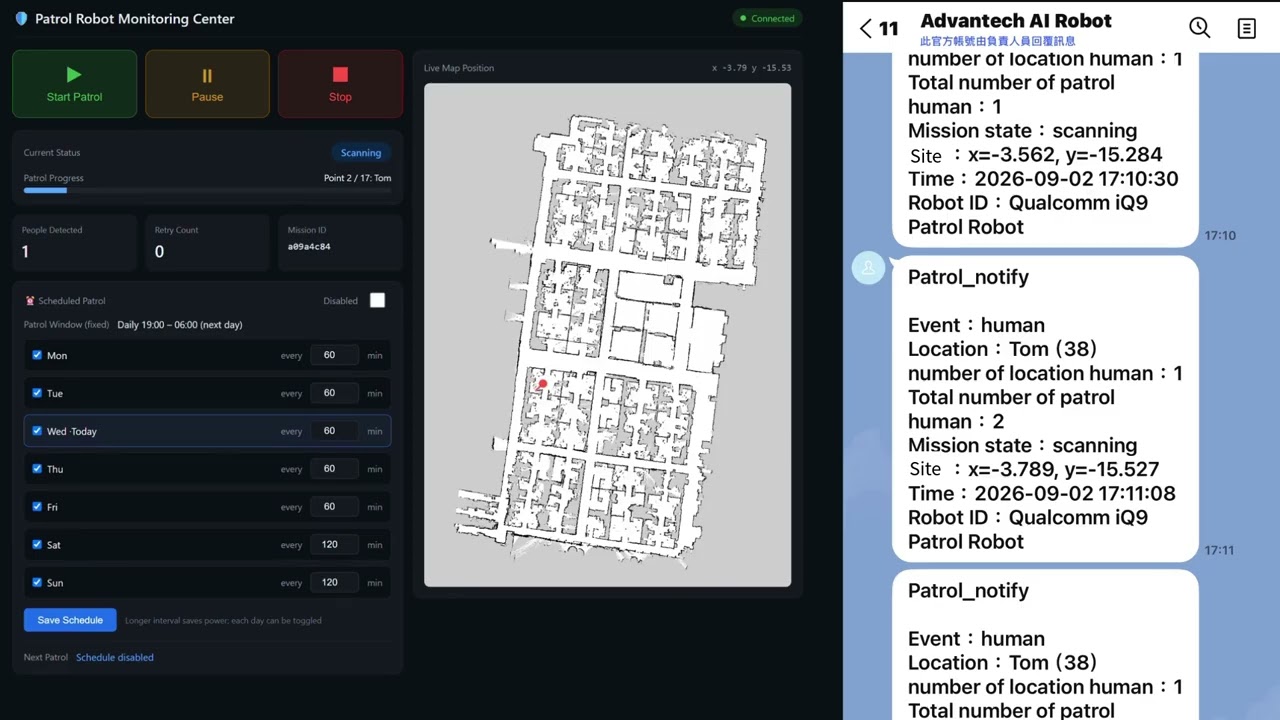
At this stage, the AMR application is fully operational on the Dragonwing™ IQ9-based platform. Navigation, patrol, and human-detection workloads are executed locally at the edge through Advantech Robotic Suite.
While local execution enables autonomous operation, many deployments also require centralized visibility into mission status, detection events, and device health across multiple robots. To address this requirement, the next section extends the solution to WEDA Cloud through a lightweight telemetry integration workflow.
7. Extending to the Cloud: Streaming Robot Telemetry with WEDA
The previous sections demonstrated how the IQ9 platform executes the complete robotics workload locally. The next step is to make operational data available outside the robot for centralized monitoring and management.
Using WEDA Cloud, patrol status, mission states, detection results, and device-health information can be streamed from the edge to the cloud without modifying the core robotics application. A lightweight WEDA Sub-Node bridge translates Robotic Suite events into WEDA telemetry and securely uploads them through the WEDA Node Agent.

Figure 2 summarizes the deployment workflow used in this article.
7.1 Connecting the Device to WEDA Cloud
Before telemetry data can be transmitted to WEDA Cloud, the IQ9 platform must be onboarded and activated. This one-time process creates a WEDA-managed device identity (deviceId), which is used by all subsequent cloud services.
- Install and start the WEDA Node Activator on the IQ9, and install Postman on the host PC.
- In Postman, select the WEDA environment and set the URL and login variables provided with your account.
- Follow the onboarding requests to retrieve the device’s hardware metadata: its primary MAC address becomes the
deviceId, and its model becomes thehwModel. Add these two variables, then run the activation request.
When the device list returns the new entry with "status": "Activated", onboarding is complete. Keep the deviceId — the sub-node bridge in Section 7.3 must use the same value.

Figure 3 WEDA Cloud onboarding: the IQ9 device appears in the node list as “Activated”
7.2 Configure the Robotic Application
To generate the patrol and detection events used in this demonstration, build and configure the robot workspace on the IQ9 platform. The application is based on ROS 2 and uses a standard colcon workspace for build and deployment.
Build the robot workspace (skip any packages you do not need for the demo):
# From the robot workspace root
colcon build --symlink-install --mixin release \
  --packages-skip intra_process_demo
If the navigation packages are missing, install them and re-source the workspace:
sudo apt update
sudo apt install ros-jazzy-navigation2 ros-jazzy-nav2-bringup ros-jazzy-nav2-msgs
source /opt/ros/jazzy/setup.bash
source ~/robot_ws/install/setup.bash
At this point, the AMR can navigate on its own, and the patrol application publishes detection events on the /patrol_detection_events topic. The bridge forwards a few key fields from each event to the cloud:
mission_state— the robot’s current patrol state (e.g. scanning, idle)location_human_count— number of people detected at the current locationevent_id— a unique identifier for each detection event (uploaded to WEDA aspatrol_event_id)
7.3 Bridge Robot Telemetry to WEDA Cloud
The WEDA Sub-Node is a small Docker service that maps selected Robotic Suite messages to WEDA telemetry data streams. It is bound to the same deviceId generated during the device activation process.
Build and start the sub-node container, then verify that it has been registered with the target device:
# Retrieve the NATS credentials from the WEDA Node Agent (dmagent),
# and set them in the Sub-Node configuration before building the container:
sudo docker inspect dmagent --format '{{range .Config.Env}}{{println .}}{{end}}' | grep '^NATS_'

# Build and launch the WEDA Sub-Node bridge
docker build -f apps/RobotSubNode/Dockerfile -t robot-subnode:latest .
docker compose up -d

# Confirm the deviceId registered
docker compose logs weda-subnode 2>&1 | grep -i registered
With the bridge running, launch the Robotic Suite bridge node so events start flowing to WEDA:
ros2 launch robot_subnode_bridge subnode_bridge.launch.py
You can verify the local node graph with the rqt tool — the bridge node should appear as a subscriber to these ROS 2 topics.

Figure 4 Robotic Suite node graph in rqt: the bridge node consuming patrol/detection topics.
To generate a known value for testing, publish a sample patrol event:
ros2 topic pub /patrol_detection_events \
  wheeltec_patrol_interfaces/msg/PatrolEvent \
  "{ event_id: 'test-event-001', event_type: 'location_human_count',
     object_type: 'person', mission_state: 'scanning',
     location_human_count: 2, patrol_human_count: 2 }"
7.4 Verify Telemetry on WEDA Cloud
From the host PC, use Postman (or the WEDA dashboard) to confirm the data arrived. Verify the following items:
- Node List: Your AMR appears among the registered devices using the deviceId generated during onboarding.
- Sensor Settings — the telemetry names you published (e.g. mission_state, patrol_event_id) are listed for the device.
- Latest Data Stream Value — the most recent value matches what the robot published (e.g. patrol_event_id = test-event-001).
If nothing appears in the data-stream list, reboot the device and confirm the sub-node container is running and registered.
7.5 Telemetry Verification Results
With the integration completed, the AMR can operate locally on the Dragonwing™ IQ9-based platform while simultaneously publishing patrol and detection events to WEDA Cloud. The dashboard provides near real-time visibility into robot activity, mission status, and detection results without requiring any modifications to the core robotics application.

Figure 5 WEDA Cloud data-stream latest value confirming the AMR telemetry.
8. Troubleshooting
-
Scenario 1: Workspace Build Failure
If the workspace build fails on an optional package, exclude the package from the build using
--packages-skip <package_name>. The telemetry demonstration does not require every package in the workspace to be compiled successfully. -
Scenario 2: Sub-Node Not Registered or No Telemetry Appears in WEDA Cloud
Verify the following:
- The WEDA Sub-Node container is running (
docker compose ps). - The configured deviceId matches the activated WEDA device.
- The IQ9 platform has network connectivity.
If telemetry still does not appear in WEDA Cloud, reboot the device and verify that the sub-node has successfully registered.
- The WEDA Sub-Node container is running (
-
Scenario 3: Device Status Remains “Not Activated”
Re-run the WEDA activation request and verify the API base URL, account credentials, and environment variables configured in Postman.
-
Scenario 4: Postman Authentication Fails
If authentication cannot be completed using Chrome, try an alternative browser during the WEDA login process.
9. Conclusion
This article demonstrated how an Autonomous Mobile Robot (AMR) can be deployed on Advantech’s Dragonwing™ IQ9-based platform using Ubuntu 24.04 Pro, Advantech Robotic Suite, and WEDA edge-to-cloud services.
By combining local robotics processing with cloud-based telemetry management, the solution enables navigation, patrol, and human-detection workloads to run entirely at the edge while making operational data available for centralized monitoring through WEDA Cloud.
Because the AOM-6741, ASR-A503, and AFE-A503 share the same Qualcomm Dragonwing™ IQ9075 architecture and software stack, the deployment workflow described in this guide can be applied across multiple IQ9-based products with minimal modification.