
1. Introduction
Qualcomm introduced its Qualcomm Dragonwing™ portfolio earlier this year, delivering cutting-edge AI performance and ultra-low latency at the edge to unlock new possibilities for scalable industrial innovation. Advantech has adopted Dragonwing™ technology across diverse hardware form factors and product lines, including solutions powered by the Qualcomm Dragonwing™ QCS6490 processor for embedded modules, smart panels, and AI cameras. Combining advanced hardware integration with the robust capabilities of Advantech Edge AI SDK, our QCS6490-powered solutions not only optimize performance but also ensure seamless compatibility by integrating and testing Qualcomm AI software and SOPs for usability. This powerful synergy simplifies development and accelerates deployment, paving the way for innovative Edge AI applications. In the following sections, we’ll walk you through the quick-start AI development process on the AOM-2721 OSM development kit powered by Qualcomm QCS6490, demonstrating how you can rapidly harness its capabilities to drive transformative solutions across industries.
2. Prerequisites
Hardware
- One AOM-2721 OSM development kit powered by the Qualcomm Dragonwing™ QCS6490
- Qualcomm 8-core Kryo CPU, up to 2.7GHz
- Hexagon™ Tensor Processor with12 TOPS AI capability
- Adreno VPU 633, 4K30 Encode/ 4K60 Decode H.264/265
- Adreno GPU 643, OpenGL ES3.2/OpenCL 2.0
- Onboard 8 GB LPDDR5 memory, 8533MT/s
- Onboard 128 GB UFS + 128 GB eMMC storage
- Featured I/O interfaces: 1x MIPI-DSI / eDP 1920x1080 @60 Hz, 1x DP
1920x1080 @60Hz, 2 x 4-Lan MIPI-CSI, 1 x USB 3.2 Gen1, 2 x PCIe Gen3
x1, 1 x PCIe Gen3 x2, and 1 x GbE
- One x86 development machine with 16 GB of RAM and 350 GB of storage
- One Full-HD HDMI monitor and one HDMI cable
- One USB mouse and keyboard set
Software
- Ubuntu 20.04 or 22.04 for the x86 development machine
- Docker engine for the x86 development machine
- Advantech Edge AI SDK/Inference Kit for AOM-2721
(Download; How to Install)
This article covers three main topics along with detailed methods:
- How to enable AI runtime on the AOM-2721
- Compiling a Yocto OS image (via a dev machine)
- Installing the Yocto OS (via a Windows host)
- Setting up AI runtime on the AOM- 2721
- How to quickly evaluate AI performance with No-Code tools in the Advantech Edge AI SDK
- Starting the Edge AI SDK/Inference Kit on the AOM-2721
- Launching vision AI for detecting objects
- Monitoring workload and running benchmark
- How to develop with AI example workflows for real applications:
- Using Qualcomm AI Hub cloud services
- Deploying Qualcomm AI Hub models on the AOM-2721 for AI tasks
- Integrating an open-source YOLO model on the AOM-2721 for AI tasks
3. How to enable AI runtime on the AOM-2721
3.1 Compiling a Yocto OS image (via a dev machine)
Target OS for the AOM-2721:
- Yocto Version: 4.0.18
- Kernel Version: 6.6.28
- Meta Build ID: QCM6490.LE.1.0-00218-STD.PROD-1
Dev machine requirements for compiling:
- OS: Ubuntu 20.04 or 22.04
- RAM: 16 GB above
- Storage: 350 GB to be used
We will now proceed step by step, beginning with the installation of the build tools, followed by downloading the Advantech customized BSP, obtaining the base Yocto OS image, and finally compiling the required custom Yocto OS image.
First, use the prebuilt docker image, which includes the necessary toolchain.
To pull the docker image, execute the following command:
$ sudo docker pull advrisc/u20.04-qcslbv2:latest
Then, run the docker image on a development machine:
$ mkdir -p /home/bsp/myLinux`
$ sudo docker run --privileged -it --name qclinux -v /home/bsp/myLinux:/home/adv/BSP:rw advrisc/u20.04-qcslbv2 /bin/bash
adv@7cc0fa834366:~$ sudo chown adv:adv -R BSP
Download the Advantech customized BSP:
【NOTE  】 : Please contact Advantech to get the ADV_GIT_TOKEN in advance.
$ cd /home/adv/BSP
$ git config --global credential.helper 'store --file ~/.my-credentials'
$ echo "https://AIM-Linux:${**ADV_GIT_TOKEN**}@dev.azure.com" > ~/.my-credentials
(Here is an example for how to get the latest BSP.)
$ repo init -u https://dev.azure.com/AIM-Linux/risc_qcs_linux_le_1.1/_git/manifest -b main -m adv-6.6.28-QLI.1.1-Ver.1.1_robotics-product-sdk-1.1.xml
$ repo sync -c -j${YOUR_CPU_CORE_NUM}
The downloaded BSP will include the following files:

Download the base Yocto OS image built by Qualcomm. (File link)
- The file size is about 30 GB.
- The MD5 checksum is 02a2d44d728cd8cabf4a9c25752f0606.
Decompress the downloaded file.
【NOTE 】 : Please contact Advantech to get the PASSWORD in advance.
$ cd /home/adv/BSP
$ openssl des3 -d -k ${**PASSWORD**} -salt -pbkdf2 -in downloads.qcs6490.le.1.1.r00041.0.tar.gz -out downloads.qcs6490.le.1.1.r00041.0.decrypt.tar.gz
$ tar -zxvf downloads.qcs6490.le.1.1.r00041.0.decrypt.tar.gz
Next, set up the environment variables via the given script:
$ source scripts/env.sh
Lastly, execute the following script to build all available images:
$ scripts/build_release.sh -all
//Output ufs images : build-qcom-robotics-ros2-humble/tmp-glibc/deploy/images/qcm6490/qcom-robotics-full-image
//Output emmc images : build-qcom-robotics-ros2-humble/tmp-glibc/deploy/images/qcm6490/qcom-robotics-full-image-emmc
[Additional Info] Setting a cross compiler for creating executable code for the AOM-2721
Download the cross-compiler SDK. (File link)
- The file size is about 4 GB.
- The MD5 checksum is f4184521f8d2c71a8a2953ac1b143242.
Execute the installation.
$ cd build-qcom-robotics-ros2-humble/tmp-glibc/deploy/sdk
$ sudo ./qcom-robotics-ros2-humble-x86_64-qcom-robotics-full-image-armv8-2a-qcm6490-toolchain-1.0.sh
Enter a new directory path or press the Enter key to use the default. When prompted with “Proceed [Y/n]?”, type Y to confirm.

You will know the cross compiler has been installed successfully when you see the following message:

Perform the following command to finish setting up the cross compiler:
$ source ${TOOLCHAIN}/environment-setup-armv8-2a-qcom-linux
3.2 Installing the Yocto OS onto the AOM-2721 (via a Windows host)
Use Qualcomm PCAT on a Windows host to install the Yocto OS onto the AOM-2721.
Here are the steps to install the Yocto OS:
- Connect the Windows host to the AOM-2721 via the Micro USB (EDL) port.
- Enter Forced Recovery mode: Set SW2 to 1-on.
- To flash EMMC: Set SW1 to 1-off, 2-on.
- To Flash UFS: Set SW1 to 1-on, 2-on.
Refer to the Link for details.
Use Qualcomm PCAT on a Windows host to install the Yocto OS onto the AOM-2721.
Here are the steps to install the Yocto OS:
- Connect the Windows host to the AOM-2721 via the Micro USB (EDL) port.
- Enter Forced Recovery mode: Set SW2 to 1-on.
- To flash EMMC: Set SW1 to 1-off, 2-on.
- To Flash UFS: Set SW1 to 1-on, 2-on.
Refer to the Link for details.
3.3 Setting up AI runtime on the AOM-2721
Afterward, it is required to set up the AI execution QIRP environment on the AOM-2721, which can be done by following these steps:
$ source /opt/qcom/qirp-sdk/qirp-setup.sh
At this point, the AI runtime is successfully set up on the AOM-2721. Next, we’ll cover how to run AI application examples on the AOM-2721 using the QCS6490.
4. Rapidly assess AI capabilities with the Advantech Edge AI SDK

【NOTE
】 : Please ensure that the Advantech Edge AI SDK/Inference Kit is installed in advance, as outlined in the Prerequisites | Software section above.
4.1 Starting the Edge AI SDK/Inference Kit
Step 1. Launch Terminal: Open a new terminal window.
Step 2. Execute Application Script: Run the following command in the terminal: /opt/Advantech/EdgeAISuite/MainAPP/QCS6490/app.sh


4.2 Launching vision AI for detecting objects
Step 1. Navigate to Quick Start (Vision): Access the “Quick Start (Vision)” page as illustrated below.
Step 2. Select Application: Choose one of the available applications.
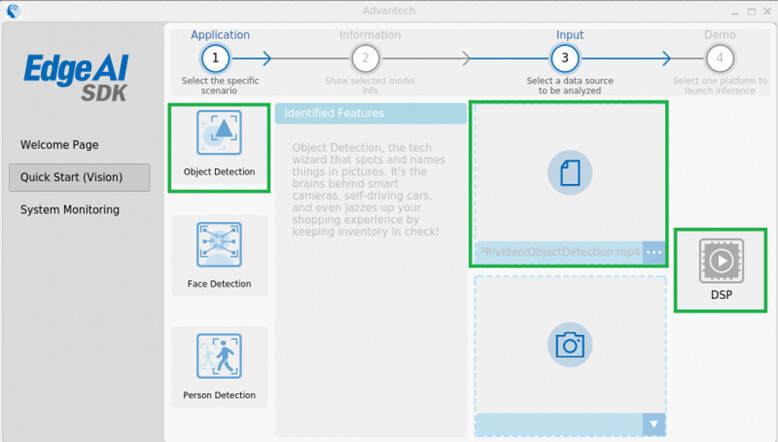
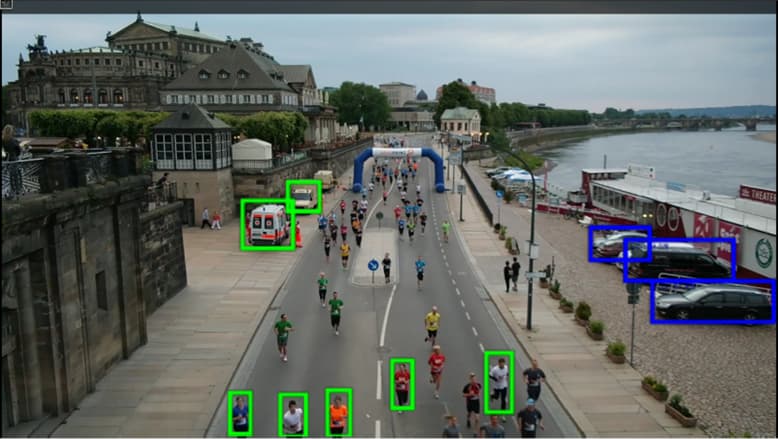
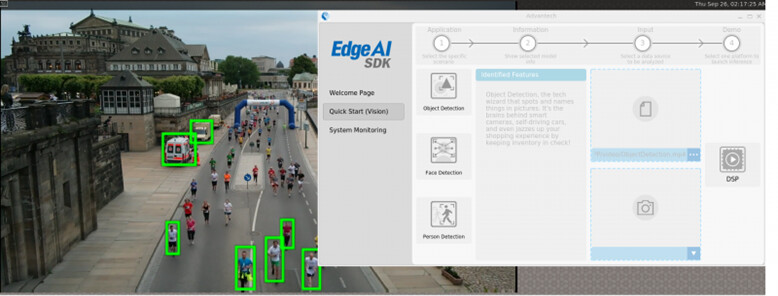
Step 3. To close the AI inference application, ensure the GUI utility is displayed at the top of the screen.
Step 4. Press the “Esc” key to close or exit the application.
4.3 Monitoring workload and running benchmark
Provides line chart visualization for real-time monitoring of data.

It swiftly evaluates DSP computing performance, providing the performance metric value.

5. AI application examples
5.1 Using Qualcomm AI Hub cloud services
This use case explains how to evaluate the AI computing performance of the QCS6490 using Qualcomm’s cloud service, AI Hub.
Qualcomm® AI Hub aims to simplify deployment of AI models for vision, audio, and speech applications to edge devices. You can optimize, validate, and deploy your own AI models on hosted Qualcomm platform devices within minutes.
To begin, log in to the Qualcomm AI Hub website, and select the target chipset – QCS6490. The AI Hub will then list all supported AI models and applications.

Then, select the AI model that you need. (e.g., YOLOv8 for object detection)
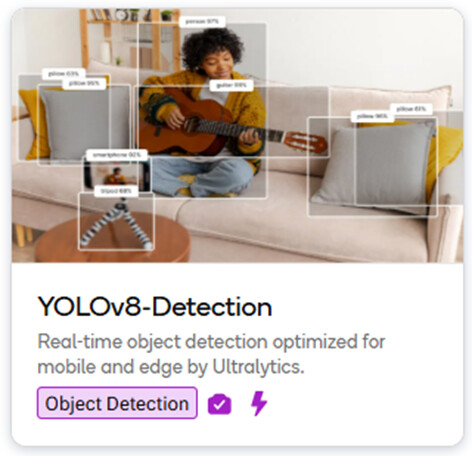
Here, you can find detailed information about the model and its inference performance on the QCS6490.

5.2 AI application examples | Deploying Qualcomm AI Hub models
You can also download AI models from the AI Hub and deploy them on the AOM-2721 with the QCS6490.
For example, here is an object detection application on the AOM-2721:
- OS/Kernel: LE QIRP1.1 Yocto-4.0 / 6.6.28
- BSP: qcs6490aom2721a1
- AI Model: YOLOv8-Detection
- Input: Video or USB Camera
- AI Accelerator: DSP
The required AI inference framework is available on the AOM-2721:

The hosts used to connect the Qualcomm AI Hub are listed below:

First, sign up or log in to the Qualcomm AI Hub at:
Then, save the token_value found on the Settings – ACCOUNT page.

Next, install the AI Hub tool.
$ sudo apt install git
$ sudo apt install python3-pip -y
$ sudo pip install qai-hub
Export the AI Hub model.
$ qai-hub configure --api_token **token_value**
$ pip install "qai-hub-models[yolov8-det]"
$ python3 -m qai_hub_models.models.yolov8_det.export --quantize w8a8
Locate the tflite inference model.
$ build/yolov8_det/yolov8_det.tflite
$ mv yolov8_det.tflite yolov8_det_quantized.tflite
Download the label file required by YOLO.
$ git clone https://github.com/ADVANTECH-Corp/EdgeAI_Workflow.git
$ EdgeAI_Workflow\ai_system\qualcomm\aom-2721\labels\coco_labels.txt
Lastly, copy the tflite inference model and its label file from the host to the AOM-2721, and launch an AI application via the GStreamer pipelines.


5.3 AI application examples | Integrating an open-source YOLO model
This use case demonstrates how to develop object detection using an open-source YOLO model on the AOM-2721 with QCS6490.
- OS/Kernel: LE QIRP1.1 Yocto-4.0 / 6.6.28
- BSP: qcs6490aom2721a1
- AI Model: YOLOv5
- Input: Video or USB Camera
- AI Accelerator: DSP
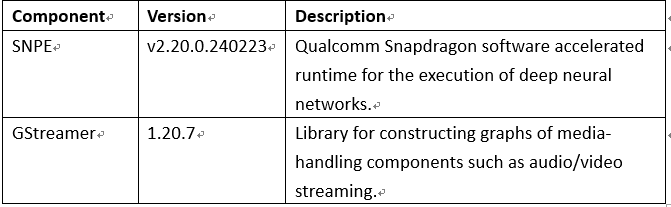
The required AI inference framework is available on the AOM-2721:
The machines used for development are listed here:


If needed, follow these steps to install SNPE on the development machine.
- Sign up for a Qualcomm Account: account.qualcomm.com - Sign In
- Download and install Qualcomm Package Manager 3:
- Download and install the Qualcomm® AI Engine Direct SDK:
- Download and install the Qualcomm® Neural Processing SDK:
- Install ML frameworks:
$ pip install onnx==1.11.0
$ pip install tensorflow==2.10.1
$ pip install torch==1.13.1
Next, on the development machine, follow these steps to obtain an open-source pre-trained AI model, then optimize and convert it for the AOM-2721 (QCS6490).
- Download the yolov5n.pt model from GitHub - ultralytics/yolov5: YOLOv5 🚀 in PyTorch > ONNX > CoreML > TFLite.
- Convert the model (pt → onnx):
$ git clone https://github.com/ultralytics/yolov5
$ cd yolov5
$ pip install -r requirements.txt
$ python export.py --weights yolov5n.pt --include onnx
- Optimize the model (onnx → dlc):
Download the guide. (Reference Document Link).
Then, follow steps 1 to 6 in the guide to complete the model optimization. - Obtain the label file required by YOLO:
$ git clone https://github.com/ADVANTECH-Corp/EdgeAI_Workflow.git
$ EdgeAI_Workflow\ai_system\qualcomm\aom-2721\labels\yolov5.labels
Lastly, copy the optimized model (DLC) and its label file to the AOM-2721. Then, launch an AI application via the GStreamer pipelines.


Here is an execution example.

6. Conclusion
To wrap up, this article demonstrates how the Advantech AOM-2721, powered by the Qualcomm QCS6490 platform, is advancing Edge AI development. It covers how to compile the BSP, setting up the AI runtime, and deploying a visual AI application—all in a streamlined process. Our close collaboration with Qualcomm ensures that each step of the AI computing workflow is finely optimized for success.
With the integration of Advantech’s Edge AI SDK, the AOM-2721 provides a plug-and-play inference environment right out of the box. Users can skip the time-consuming initial system setup and quickly perform AI performance evaluations with minimal effort. This dramatically reduces development overhead and accelerates early-stage testing.
We provide one-stop support with easy-to-follow quick-start guides and dedicated technical consulting services. This comprehensive approach lowers the entry barrier and accelerates your development timeline.
In essence, Advantech’s QCS6490-powered solutions — enhanced by the Edge AI SDK — enable faster, more cost-effective innovation—making it easier to turn your Edge AI concepts into reality. Embrace a future of intelligent, efficient, and secure AI deployments with a solution that simplifies every stage, from development to deployment.
For more resources, please visit:
- AOM-2721 Quick Start Guide (QSG)
- Advantech Edge AI SDK