1. Introduction
Vision-Language Models (VLMs) are quickly becoming a practical way to bring natural-language understanding of camera and video content to the edge. Instead of simply detecting or classifying objects, VLMs can understand video content and respond to questions in natural language, enabling applications in inspection, surveillance, retail, and industrial environments where privacy, low latency, and offline operation matter.
The Advantech AOM-2521, an OSM Size-L Computer-on-Module powered by the NXP i.MX 95 application processor, provides a compact, power-efficient, functionally-safe platform for exactly these workloads. Paired with the NXP Ara240 Discrete Neural Processing Unit (DNPU), it can run a full Qwen2.5-VL-7B video-analysis pipeline entirely on-device.
In this article, we demonstrate how to build and deploy an Edge AI Video assistant on the AOM-2521 using a Gradio-based UI accelerated by the Ara240 DNPU. You upload a short video clip, ask a question in natural language, and the on-device VLM answers, all while not relying on cloud connectivity.
Follow along to see how the hardware, AI acceleration, and software stack come together to enable interactive video understanding at the edge, and how you can replicate the same architecture for your own edge AI applications.
2. Overview of the Procedure
The procedure follows the two parts of the source installation guide:
- On the Yocto build host (x86): build the BSP image with FFmpeg and
ffmpeg-devincluded, then flash it to a microSD card (Section 4). - On the AOM-2521 target: install
rt-sdk-ara2.deb, stage the model archive in/root/, installqwen2.5-vl-7b-gradio.deb, optionally install TorchCodec, and run the Gradio application (Sections 5–6).
3. Prerequisites
3.1 Necessary Hardware
Host PC (x86) — for building the BSP
- x86-64 PC or workstation running Ubuntu 20.04 / 22.04
- CPU: 8+ cores recommended (Yocto builds are I/O- and CPU-heavy)
- RAM: 32 GB recommended
- Storage: ≥ 100 GB free (a full i.MX image build is large); SSD strongly recommended
- Network: Internet access for fetching Yocto layers and sources
AOM-2521 Target Device — for runtime
- AOM-2521 — NXP i.MX 95, OSM Size-L Computer-on-Module (up to 6× Arm Cortex-A55 @ 2.0 GHz)
- Advantech evaluation carrier board for the AOM-2521
- NXP Ara240 DNPU AI accelerator card
- microSD card ≥ 64 GB (model weights are several GB)
- USB-C debug/console cable
- Ethernet connection (required during package install and TorchCodec download)
- x86 host PC on the same network (to open the Gradio UI in a browser)
3.2 Necessary Software
The NXP SW demo packages are built against Yocto 5.2 (Kernel 6.12.34). Match this BSP version to the original development environment, otherwise the demo may fail to run due to library-dependency mismatches.
| Component | Where it runs | Purpose |
|---|---|---|
Yocto BSP image (imx-image-full) |
Host build → Target | Base OS with FFmpeg |
rt-sdk-ara2.deb |
Target | Ara-2 NPU runtime + Python venv (installed first) |
qwen2.5-vl-7b-gradio.deb |
Target | The Gradio video-analysis demo |
qwen2.5-vl-7b.tar.gz |
Target | Compiled model weights (.dvm files) |
| FFmpeg / TorchCodec | Target | Major video pre-processing speed-up |
4. Build the BSP with FFmpeg (Host PC)
This procedure is based on the standard Advantech BSP. The FFmpeg-related packages described below are additional components that must be added to the BSP configuration before building the image. For complete instructions on setting up the build environment, obtaining the BSP sources, configuring the target platform, building the image, and flashing the system, refer to the AIM-Linux Developer Center.
FFmpeg dramatically reduces video trimming and frame-sampling latency, and ffmpeg-dev is required so that TorchCodec can be compiled on the target later. Include both in the image.
4.1 Add packages to local.conf
In your build’s conf/local.conf, add:
IMAGE_INSTALL:append = " python3-pybind11"
IMAGE_INSTALL:append = " ffmpeg"
IMAGE_INSTALL:append = " ffmpeg-dev"
LICENSE_FLAGS_ACCEPTED:append = " commercial"
4.2 Build the image
bitbake imx-image-full
4.3 Flash to microSD
Flash the resulting image to a ≥ 64 GB microSD card (here using NXP’s UUU tool) and boot the AOM-2521 from it:

Figure 1 — Flashing imx-image-full to the SD card with the UUU tool (“Success 1 Failure 0”).
5. Install the Demo on the AOM-2521 (Target)
After booting, copy the demo folder (gradio_for_advantech) onto the root filesystem. It contains the deb package plus INSTALL/README/LICENSE and the SBOM:

Figure 2 — Contents of the gradio_for_advantech folder copied to the target.
Connect Ethernet first — the package post-install and the optional TorchCodec step both need network access.
5.1 Install the Ara-2 SDK (dependency)
Install rt-sdk-ara2.deb first. It provides the Ara-2 NPU runtime and the Python virtual environment the demo relies on:
dpkg -i rt-sdk-ara2.deb

Figure 3 — rt-sdk-ara2 unpacking and creating the Python venv.
The post-install script downloads Python wheels, installs the Ara-2 runtime, sets up swap, and enables the rt-sdk-ara2 service:

Figure 4 — rt-sdk-ara2 post-install completed; scripts installed to /usr/bin/kinara/scripts and the service enabled.
Confirm the runtime service is up:
systemctl status rt-sdk-ara2.service --no-pager -l
5.2 Stage the model weights
Place the model archive at /root/ on the board. Do not extract it — extraction is handled automatically by the demo’s post-install step:
scp qwen2.5-vl-7b.tar.gz root@<board-ip>:/root/

Figure 5 — qwen2.5-vl-7b.tar.gz present on the filesystem.

Figure 6 — Verifying the archive is in /root/ before installing the demo.
5.3 Install the Gradio demo package
Install the demo package. This extracts several GB of model weights, so it takes a few minutes:
dpkg -i qwen2.5-vl-7b-gradio.deb

Figure 7 — The demo package untars the model into /usr/share/llm and registers run_qwen2_5-gradio system-wide.
5.4 Install TorchCodec (optional)
TorchCodec uses FFmpeg to accelerate video decoding and frame extraction. This step is optional, but recommended when lower video pre-processing latency is required. The BSP image must already include ffmpeg and ffmpeg-dev as described in Section 4, and the board must have internet access during installation.
Confirm that the FFmpeg runtime and development headers are available:
ffmpeg -version
test -f /usr/include/libavcodec/avcodec.h && echo "FFmpeg development headers found"
Activate the same Python virtual environment created by rt-sdk-ara2 and used by run_qwen2_5-gradio. The environment path may vary by SDK release; use the activation path documented in the INSTALL file supplied with the demo package. Do not install TorchCodec into a different system Python environment.
Build and install TorchCodec against the FFmpeg libraries in the BSP:
python -m pip install --no-cache-dir --no-binary=torchcodec torchcodec
Verify that TorchCodec can be imported from the demo environment:
python -c "import torchcodec; print(torchcodec.__version__)"
If pip reports an unsupported Python or PyTorch version, install the TorchCodec release that matches the SDK-provided PyTorch version; do not upgrade the SDK-bundled PyTorch independently. Refer to the official TorchCodec compatibility table when selecting a version.
6. Running the Video-Analysis Assistant
Start the application (the script lives in /usr/bin/kinara/scripts/):
run_qwen2_5-gradio

Figure 8 — Startup: config validator reports inference_device ARA2, port 8081, and the Ara-2 chip is detected.
Wait until both the LLM and vision models finish loading and the server reports its URL:

Figure 9 — LLM and vision models loaded; server running on http://0.0.0.0:8081.
On the host PC, open a browser and go to http://<board-ip>:8081/:
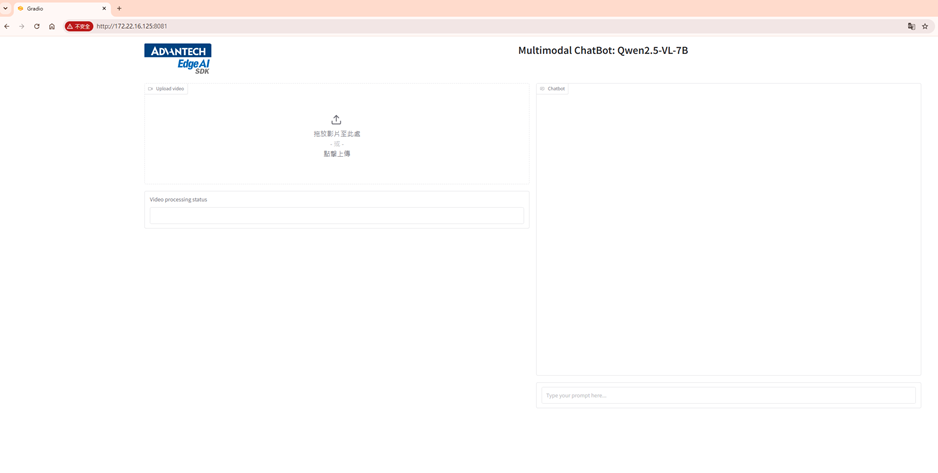
Figure 10 — The Gradio UI: upload panel on the left, chatbot on the right.
Upload an 8-second clip and wait for pre-processing to finish:
Figure 11 — Video pre-processing in progress.

Figure 12 — Pre-processing complete (“Total video preprocessing time: 19.3083 seconds”).
Type your question in the chat bar and submit. The VLM answers with per-response stats (TTFT, tokens generated, token rate):
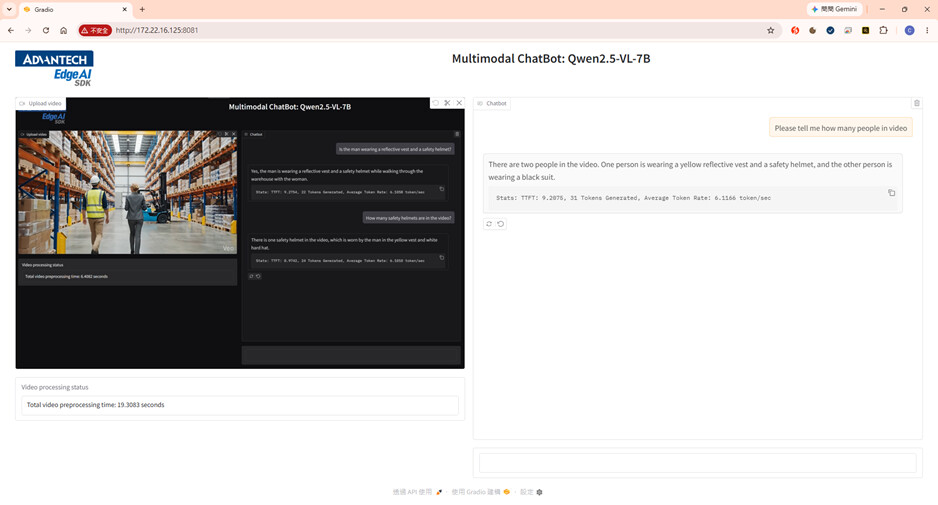
Figure 13 — Q&A on a warehouse clip: the model counts people and describes what they are wearing.
7. Run Results
Demo Video

Run LLM and vision models on AOM-DK2521 with Ara240 DNPU: Qwen2.5-VL-7B_run_results
8. Troubleshooting
Gradio demo cannot be launched after installation
Reinstall the SDK, remove any partial demo packages, then reinstall the demo:
# Reinstall the Ara-2 SDK
dpkg -i rt-sdk-ara2.deb

# Remove previously installed packages
sudo dpkg -P gui-qwen2.5-vl-7b
sudo dpkg -P qwen2.5-vl-7b-gradio

# Install the demo package again
dpkg -i qwen2.5-vl-7b-gradio.deb
Then reboot and launch again with run_qwen2_5-gradio.
AI model fails to load / very slow first launch
The first launch takes roughly 10 minutes to load the model — this is expected. If it takes much longer or fails, check the microSD card. On the AOM-2521 carrier board the SD interface is currently limited to 50 MHz, so a slow card can dramatically increase load time or cause loading to fail. Use a fast, high-quality card.
Board reboots during inference (ref. MICRSE-4303)
If the board reboots when you submit a prompt, the cause is usually an insufficient power supply. Use the correct, adequately-rated power source — under-powered supplies cause instability under the high load of inference.
9. Release Notes
| Component | Version |
|---|---|
| BSP / Yocto | 5.2 (Kernel 6.12.34) |
| Kinara SDK | r1.3 |
| ara-client | r1.1.2.0 |
| Debian package | v1.3.0 |
10. Conclusion
By combining the Advantech AOM-2521 (i.MX 95) with an NXP Ara240 DNPU, you can run a complete Qwen2.5-VL-7B video-analysis assistant fully on-device. The build stays on a capable x86 host (Yocto BSP with FFmpeg), and the compact edge module handles accelerated inference through a simple Gradio UI. With FFmpeg + TorchCodec enabled, end-to-end latency drops from minutes to tens of seconds, making it practical for real edge deployments that need privacy, low latency, and offline operation.
The key advantage of this architecture is its heterogeneous AI compute model. Rather than replacing the NPU integrated in the i.MX 95 SoC, the Ara240 discrete NPU extends the platform’s inference capacity for larger VLMs and other demanding workloads that exceed the practical performance or memory limits of the integrated NPU. The SoC NPU can still handle lightweight, latency-sensitive, or concurrent AI tasks — such as object detection, classification, and auxiliary vision analytics — while the Ara240 DNPU runs the primary VLM inference. Assigning each workload to the accelerator best suited to it distributes AI processing across the platform, improves concurrency and responsiveness, and makes full use of both the SoC and discrete AI resources. Workload placement is application-defined and depends on model and runtime support; a single model is not automatically split across both NPUs.
Explore our AIM-Linux Developer Center, a one-stop hub for BSPs, user guides, and everything you need to build on Advantech ARM platforms. Start building today and join our developer community to exchange ideas together!